 미국 공지 사항 | 업데이트
홈스테드 - 홈스테드 업데이트를 새로 고치십시오
(Refresh Your Homestead - Homestead Update)

New Homestead Expansion
- The size of your Homestead can now be expanded to be even bigger than before.
- Increase the size of your Homestead past the existing Stage 3 size using the following all-new items:
- Homestead Expansion Permit Stage 4
- Homestead Expansion Permit Stage 5
- Homestead Expansion Permit Stage 6
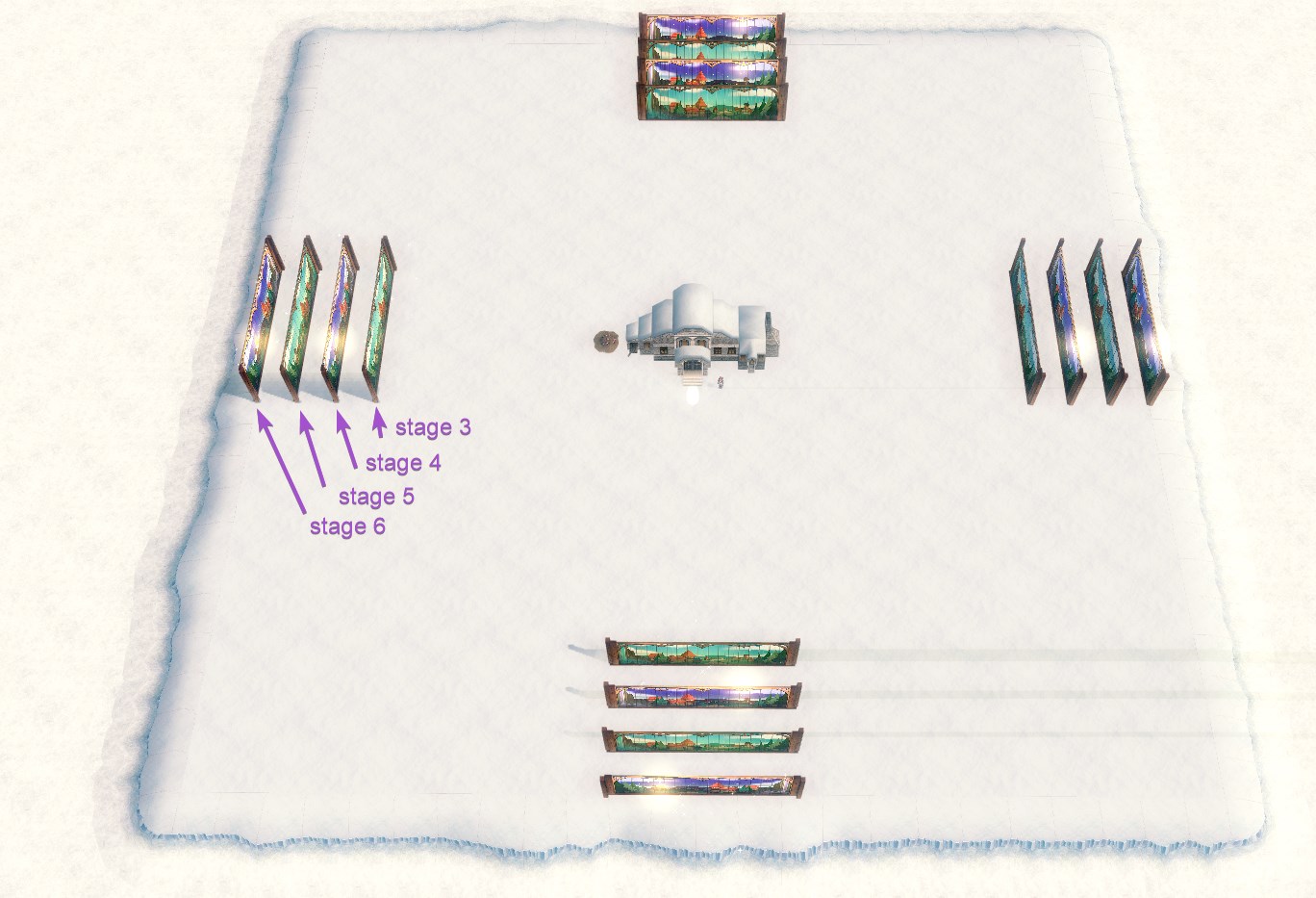
Homestead Size by Level
| Homestead Level | Size |
|---|---|
| Level 1 | 9x9 |
| Level 2 - 3 | 17x17 |
| Level 4 - 9 | 25x25 |
| Level 10 - 13 | 33x33 |
| Level 14 - 15 | 49x49 |
Homestead Size when using a Homestead Expansion Permit
| Stage | Size |
|---|---|
| Stage 1 | 55x55 |
| Stage 2 | 61x61 |
| Stage 3 | 67x67 |
| *NEW* Stage 4 | 75x75 |
| *NEW* Stage 5 | 83x83 |
| *NEW* Stage 6 | 91x91 |
Homestead Expansion Permit Details
- Homesteads that are Level 14 or higher can be expanded in size using Homestead Expansion Permits, up to Stage 6.
- Each Expansion Permit will increase the size of the Homestead.
- Stage 1 - 3: Size will be expanded by 6 tiles horizontally and vertically.
- *NEW* Stage 4 - 6: Size will be expanded by 8 tiles horizontally and vertically.
- Each Permit can only be used on a Homestead once.
- Each Permit, past Stage 1, requires the previous Stage Permit to be used on the Homestead.
- Example: The Homestead Expansion Permit (Stage 4) cannot be used until a Homestead Expansion Permit (Stage 3) has already been used to expand the Homestead.
- Each Expansion Permit will increase the size of the Homestead.
- Homestead Expansion Permits are permanently available (after the September 9th maintenance) and can be purchased in the Item Shop:
- Homestead Expansion (Stage 1)
- Homestead Expansion (Stage 2)
- Homestead Expansion (Stage 3)
- *NEW* Homestead Expansion (Stage 4)
- *NEW* Homestead Expansion (Stage 5)
- *NEW* Homestead Expansion (Stage 6)
| Homestead Expansion Permit (Stage 4) | Homestead Expansion Permit (Stage 5) | Homestead Expansion Permit (Stage 6) |
|---|---|---|
 |
 |
 |
|
Price: 3,500 NX |
Price: 3,500 NX |
Price: 3,500 NX |
New Homestead Changes
Options and Permissions
- Upon entering your Homestead, two new buttons can be accessed in the Homestead Information menu in the top right.
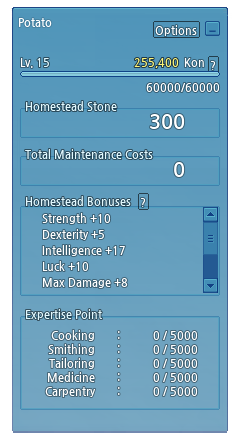
- Options: Apply overall Homestead permissions through this menu.
- This option button replaces the need to click on the Homestead Entrance -> View Information button to open the Building information menu previously.
- Minimize: This Homestead menu can now be minimized.
- You can also minimize this menu when visiting other character's Homesteads.
- Options: Apply overall Homestead permissions through this menu.
- When you click on the Options button in the Homestead menu, you can view the Homestead Options.
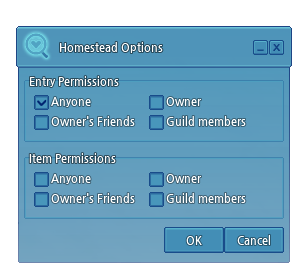
- Entry Permissions: Set the permissions of who can enter your Homestead.
- Item Permissions: Apply permissions to all Homestead Props.
- This has been changed from needing to set the option for each Homestead prop.
- You can still set the option for each Homestead prop individually.
- However, if you set the permissions for a prop individually, the saved option in Homestead Options -> Item Permissions will be unchecked. If checked again, it will change the permissions of all props once more.
- When placing a new Homestead prop, the permission setting is reflected on the new item as well.
Visitor Count
- The Homestead visitor count is now displayed.
- Open the Homestead menu (Default Hotkey: U) when outside of your Homestead to view the Today and Total visitor count.
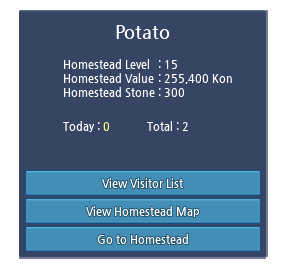
- Today's Count: View the total number of visitors to your Homestead for the day.
- This will count once per visiting character per day, and resets at 7:00 AM PT daily.
- Total Count: View the total number of visitors who have visited your Homestead.
- Today's Count: View the total number of visitors to your Homestead for the day.
Partner Homestead Placement

- You can now place your Partners in your Homestead.
- Upon entering your Homestead, a new Partner Placement button is available underneath the Edit and Construction List Homestead buttons.

- Open up the menu to view the list of available Partners that can be placed in your Homestead.
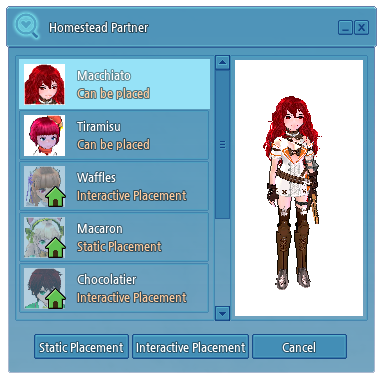
- Select Static Placement from the menu to place a Partner anywhere in your Homestead.
- Select Interactive Placement from the menu to place a Partner on a Homestead Prop, such as a chair.
- A silhouette view will appear and it will show where the Partner can be placed on all available Homestead props.
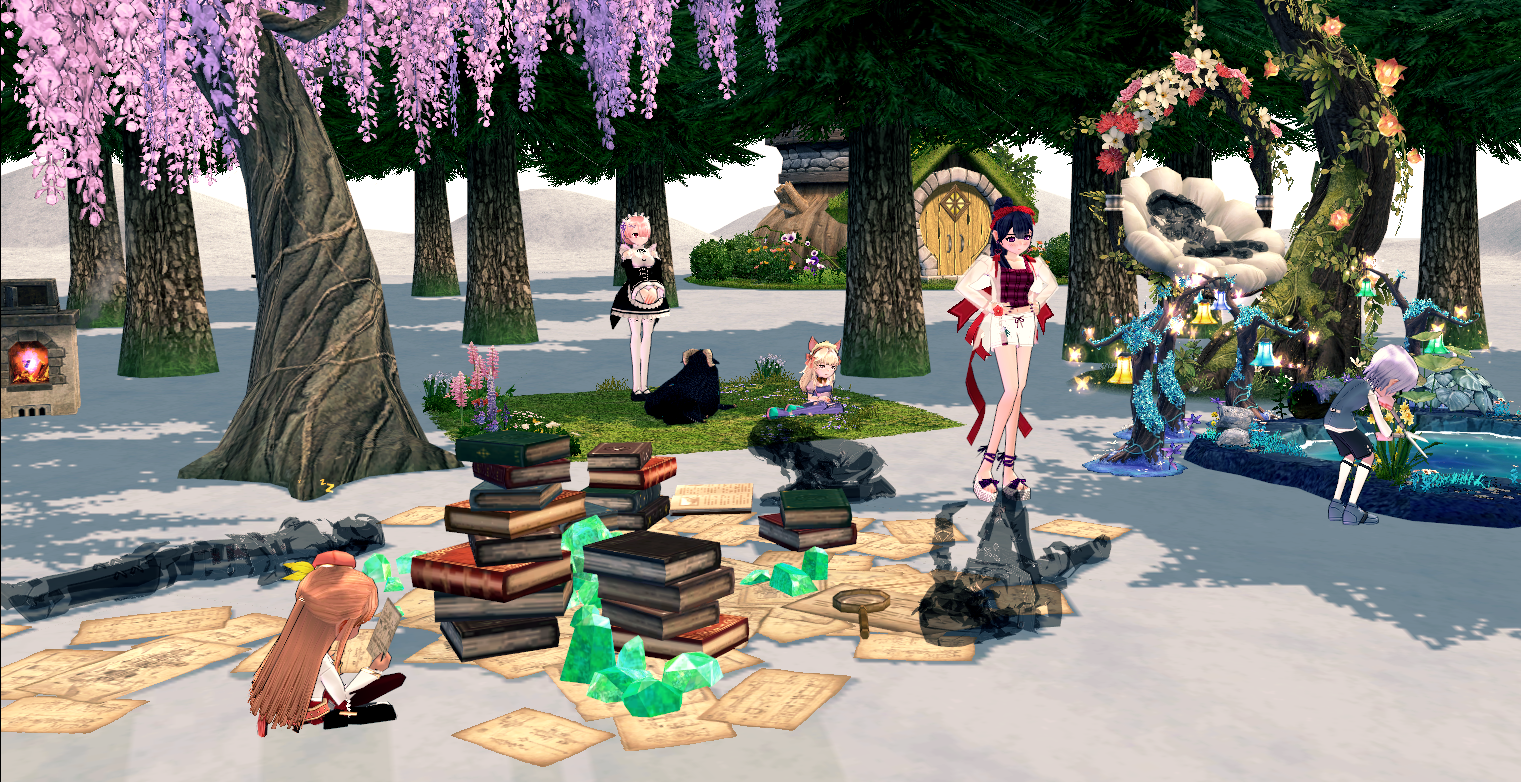
- You can move a Homestead prop that has a Partner placed on it and the Partner will be moved with it.
- If you remove a Homestead prop that has a Partner is placed on it, the Partner will also be removed with the prop. The Partner can be placed again from the Partner Placement menu.
- A silhouette view will appear and it will show where the Partner can be placed on all available Homestead props.
- You are unable to select a Partner that is already placed in another Homestead within the same account.
- Partners cannot be placed inside a Homestead House.
- Partner take up a 1x1 space when placing them in your Homestead.
- Partners cannot overlap existing Homestead prop grids.
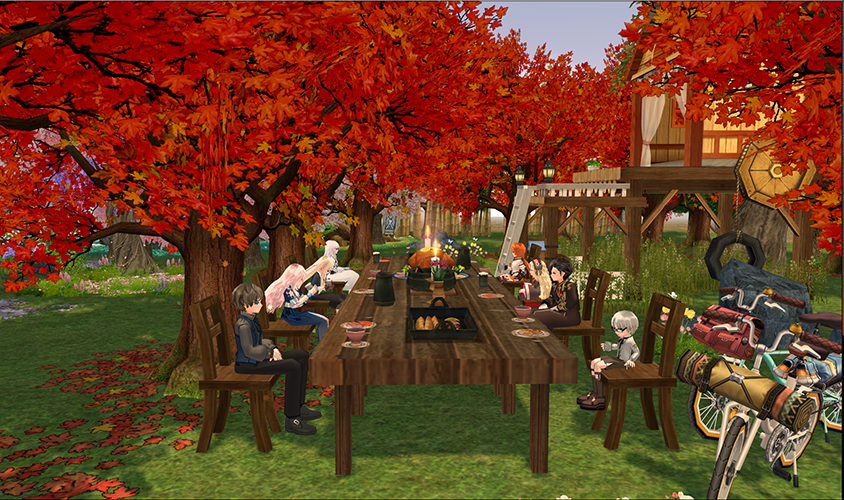
Partner Homestead Options
- While outside of the Partner Placement menu, click on a placed Partner to view the following options:
- Partner Gesture
- Move
- Switch Out
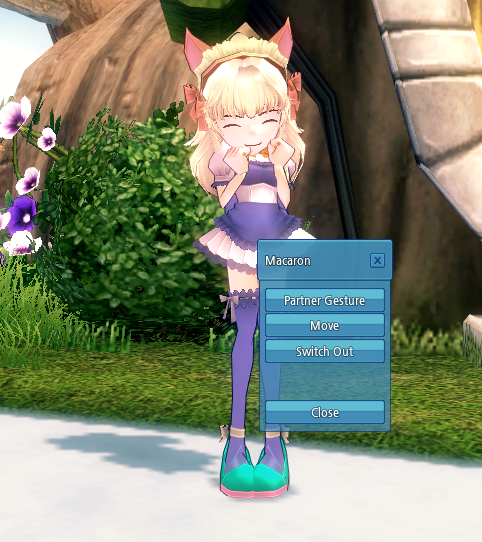
- You can now modify the Gestures of Partners place in your Homestead.
- You are unable to modify Partner Gestures when a Partner is placed on a Homestead prop.
- Crossover Partners such as Ram and Rem from the Re:ZERO crossover cannot use Partner Gestures.
Basic Motion
- Homestead Partner Cards can be used to add new basic motions to a Partner, like an idle stance.
- Homestead Partner Cards can be obtained from the Homestead Partner Basic Motion Card Box sold in the Maid and Butler Partner shops for 500,000 gold.
- You can obtain 1 of 85 Basic Motions with an equal chance when opening the box.
- Homestead Partner Cards can be obtained from the Homestead Partner Basic Motion Card Box sold in the Maid and Butler Partner shops for 500,000 gold.
- Once you have a Homestead Partner Card in your character's inventory, open the Partner Gesture menu. Under the "Motions" column, click Add, then select a Card to give to your Partner, and then click OK.
- Each card is a one-time use and will only be applied to the chosen Partner.
- You can add up to 100 Basic Motions.
- You can Delete the added motion, but the Motion Card will not be returned.
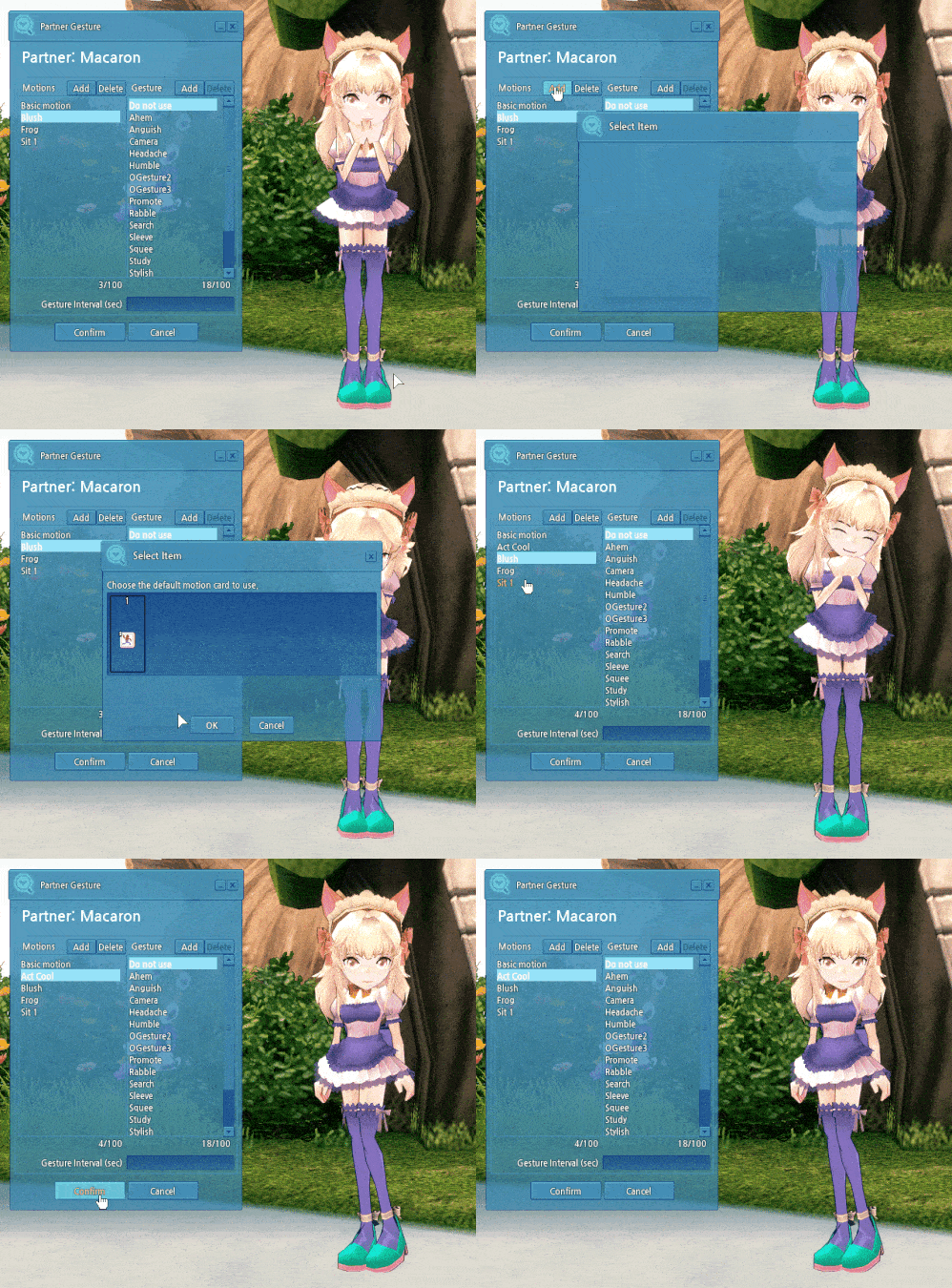
- If a Partner is wearing an outfit with an animation, the animation will play when the default "Basic Motion" option is selected.
Gesture Motion
- Gesture Cards can be used to add Gestures that a Partner can use.
- Existing Gesture Cards can be used.
- Once you have a Gesture Card in your character's inventory, open the Partner Gesture menu. Under the "Gesture" column, click Add, then select a card to give to the Partner, and click OK.
- Each card is a one-time use and will only be applied to the chosen Partner.
- You can add up to 100 Gestures.
- You can Delete the added Gesture, but the Gesture Card will not be returned.
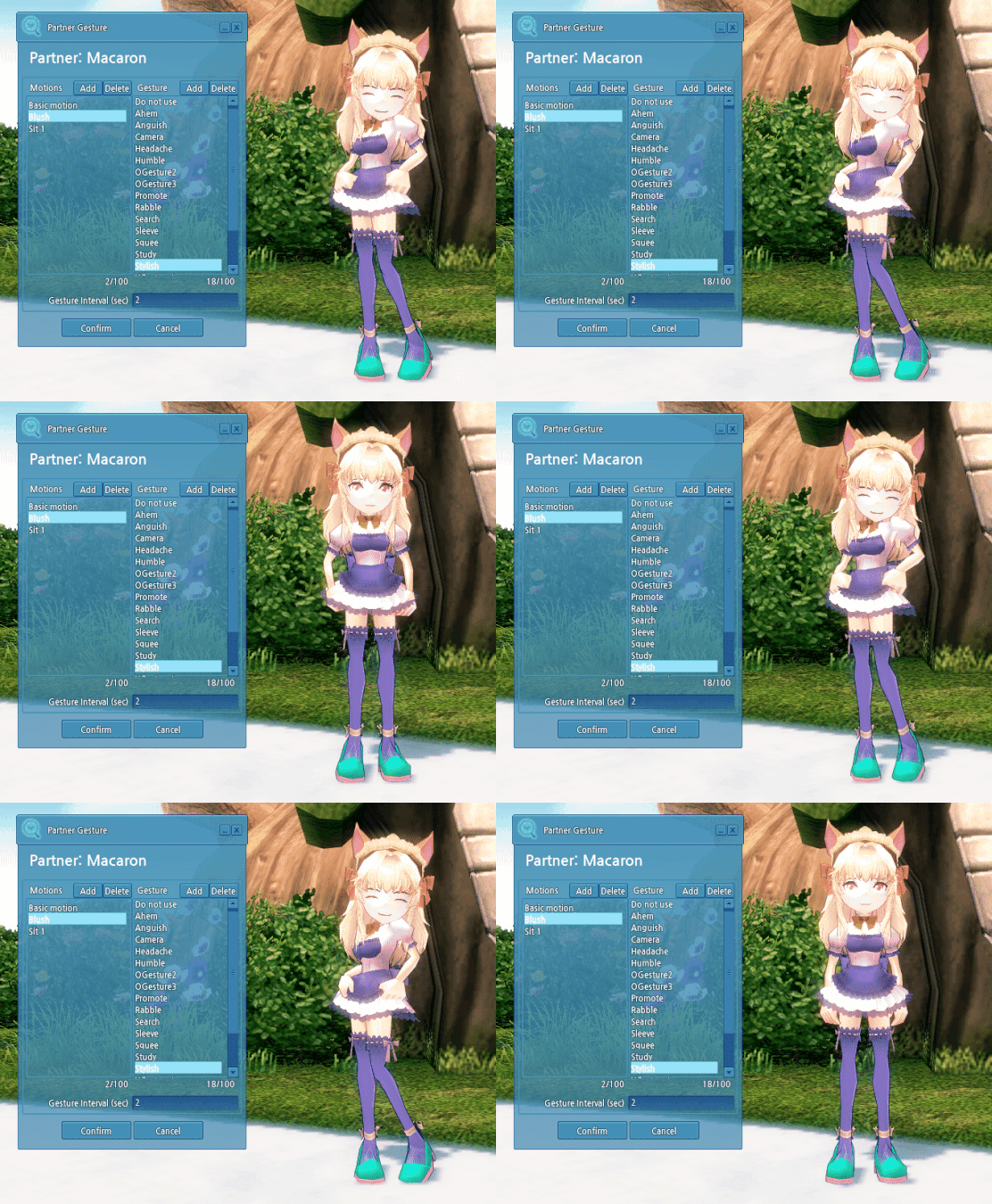
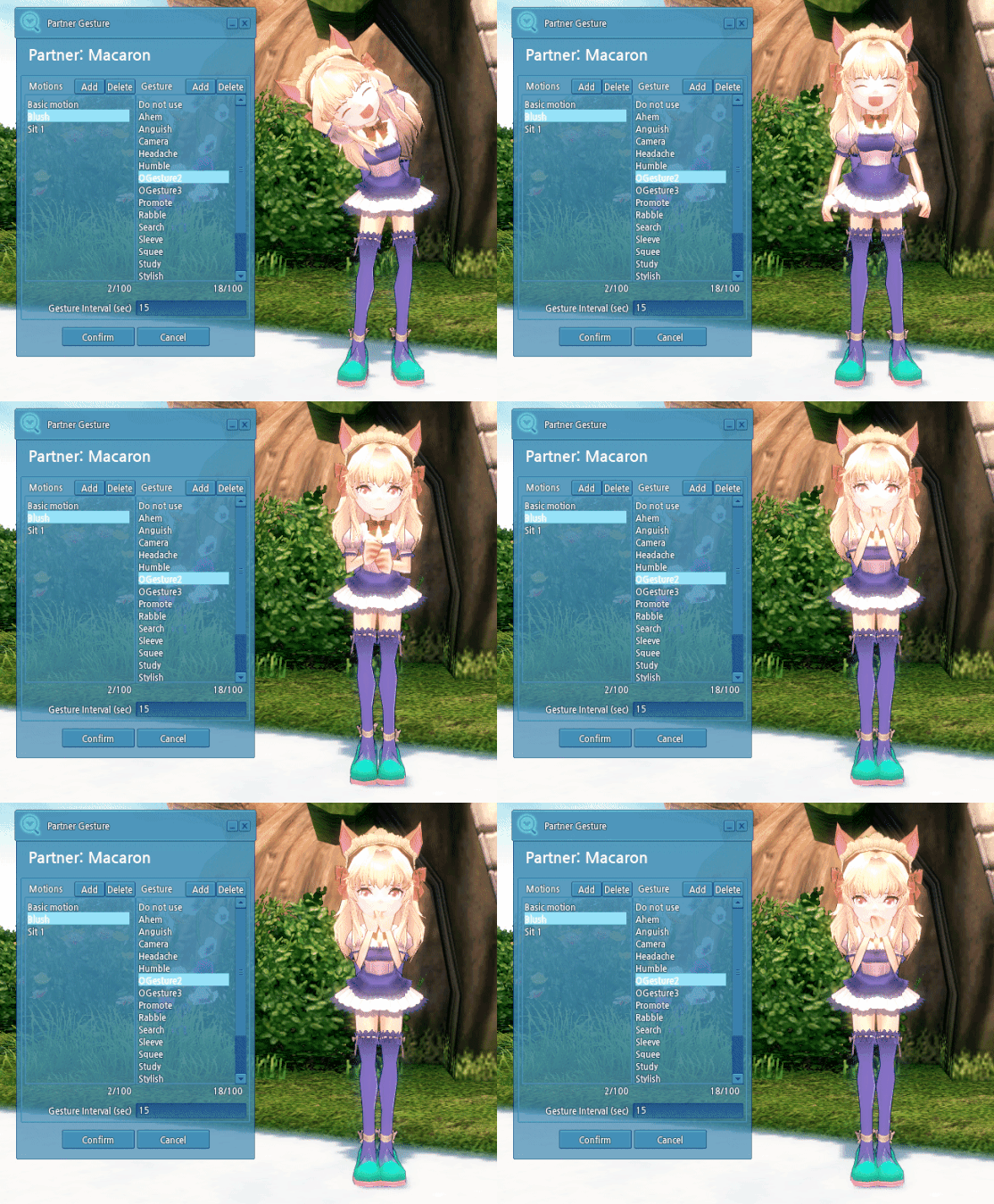
- You can change the time interval (in seconds) that the Gesture will repeat.
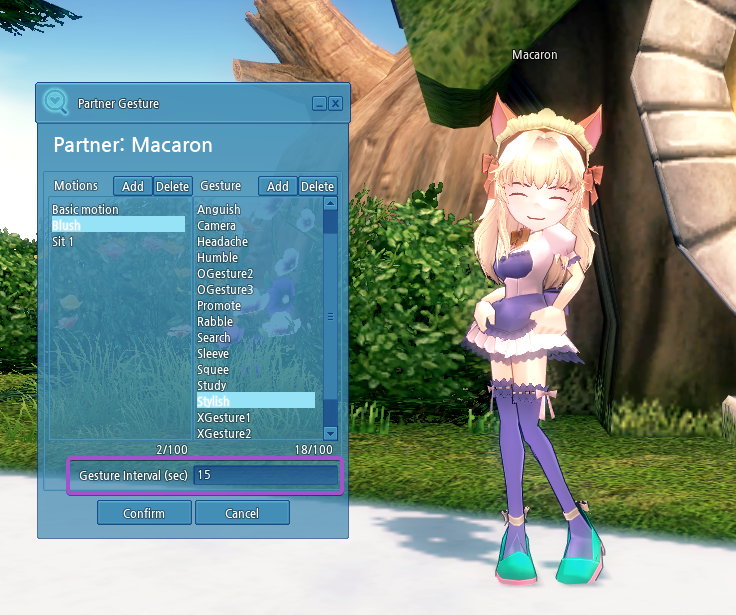
- At 0, the Gesture will continuously repeat from beginning to end. If the set interval is shorter than the length of the Gesture, the Gesture is cut off and plays again.
- If the Gesture interval is set longer than the length of the Gesture, the Gesture will play. When it ends, the Basic Motion will play until the Gesture plays again.
- The max interval can be set is 999 seconds.
- If you do not want a Gesture motion to be played, select the default "Do Not Use" option and the selected Basic Motion for the Partner will play instead.
Move
- You can move the Partner around your Homestead, similar to a Homestead prop.
- You are unable to move the Partner if they are placed on a Homestead prop.
Switch Out
- You can remove a Partner from the Homestead.
- Once a Partner is placed on the Homestead, you cannot summon it until you've removed them from the Homestead.